Show Your Song Requests On A TV
Your guests already request and vote from their phones. Now the whole room can watch it happen. With the new TV screen, your live request list runs on any TV, projector or laptop at your venue, and it updates the moment a request comes in or a vote is cast.
Your Request List, Live On The Big Screen
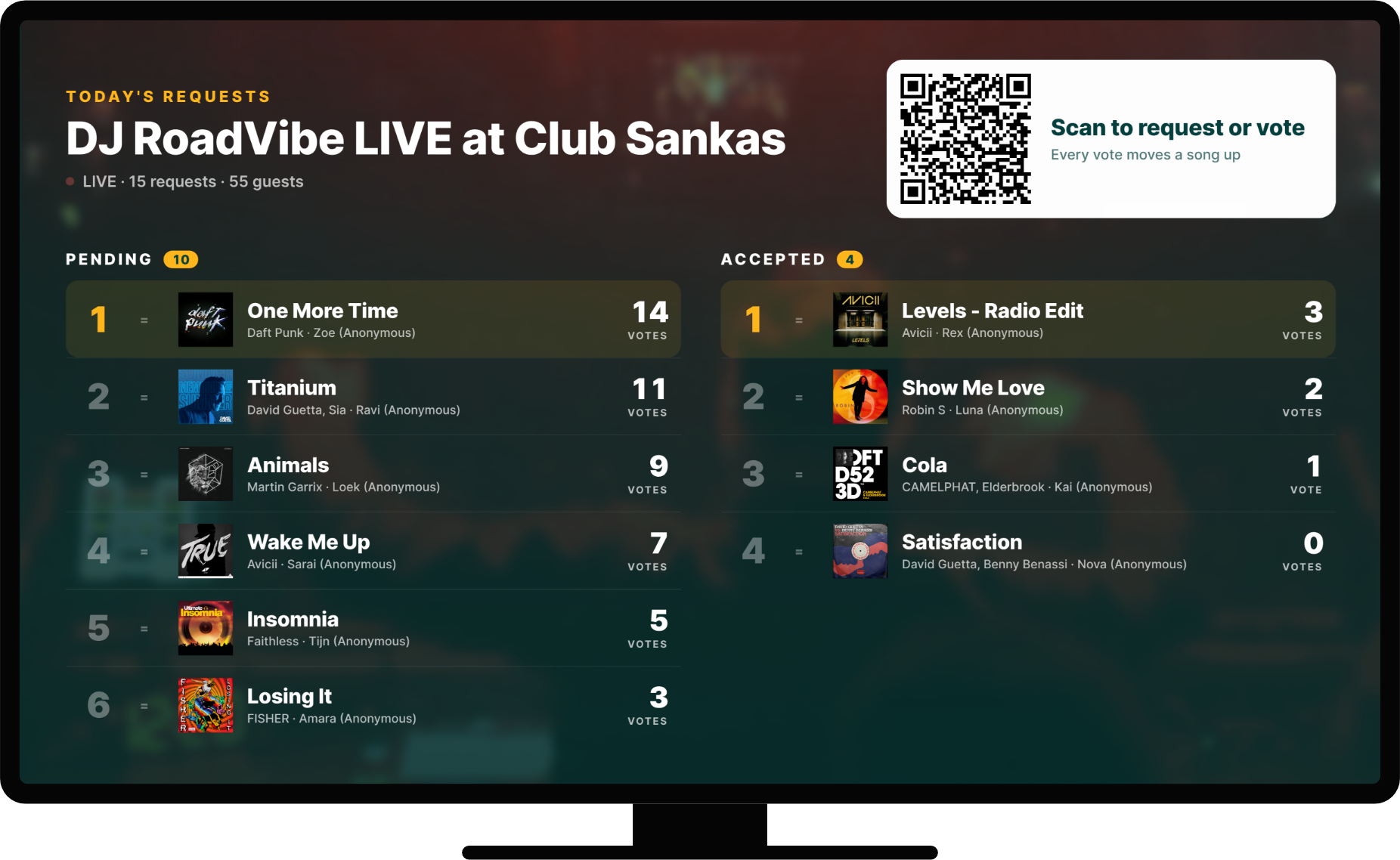
The screen shows your pending and accepted requests side by side, ranked by votes. Every request comes with its album art, the artist and the name of the guest who asked for it. New requests drop in with an animation, votes count up, and songs move over to Accepted as you work through the list.
A QR code on the screen lets anyone in the room join your event and request or vote. Nobody has to ask you for the link, and every vote moves a song up for everyone to see.
Pair A Screen In Seconds
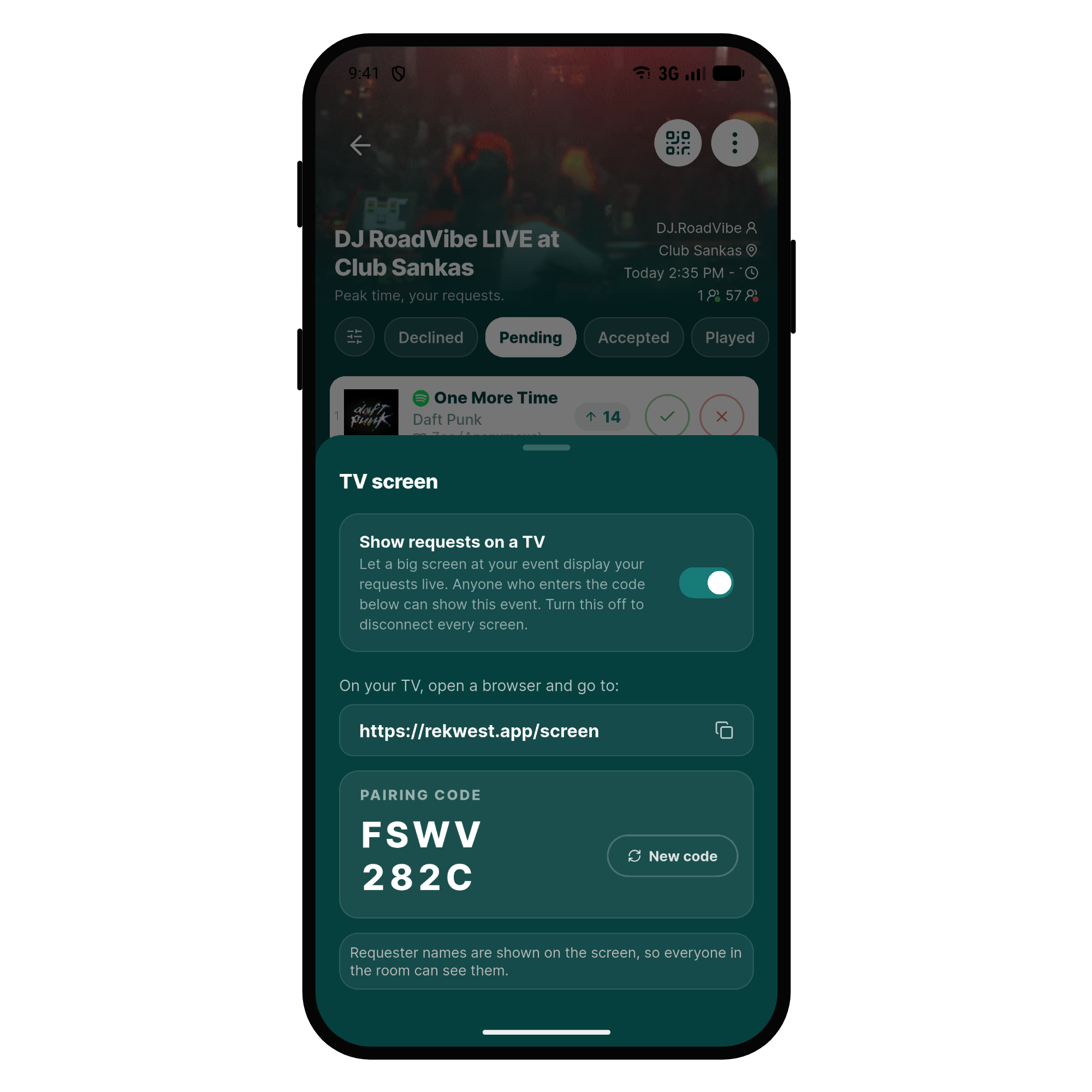
Open your event, tap ⋮ and choose TV screen. Turn on Show requests on a TV and the app gives you a pairing code. On the TV, open rekwest.app/screen in the browser and type in the code. A keyboard works, and so do the arrow buttons on the remote.
There is nothing to install. One code connects as many screens as you like, and turning Show requests on a TV off disconnects them all at once.
Set It Up For Your Venue
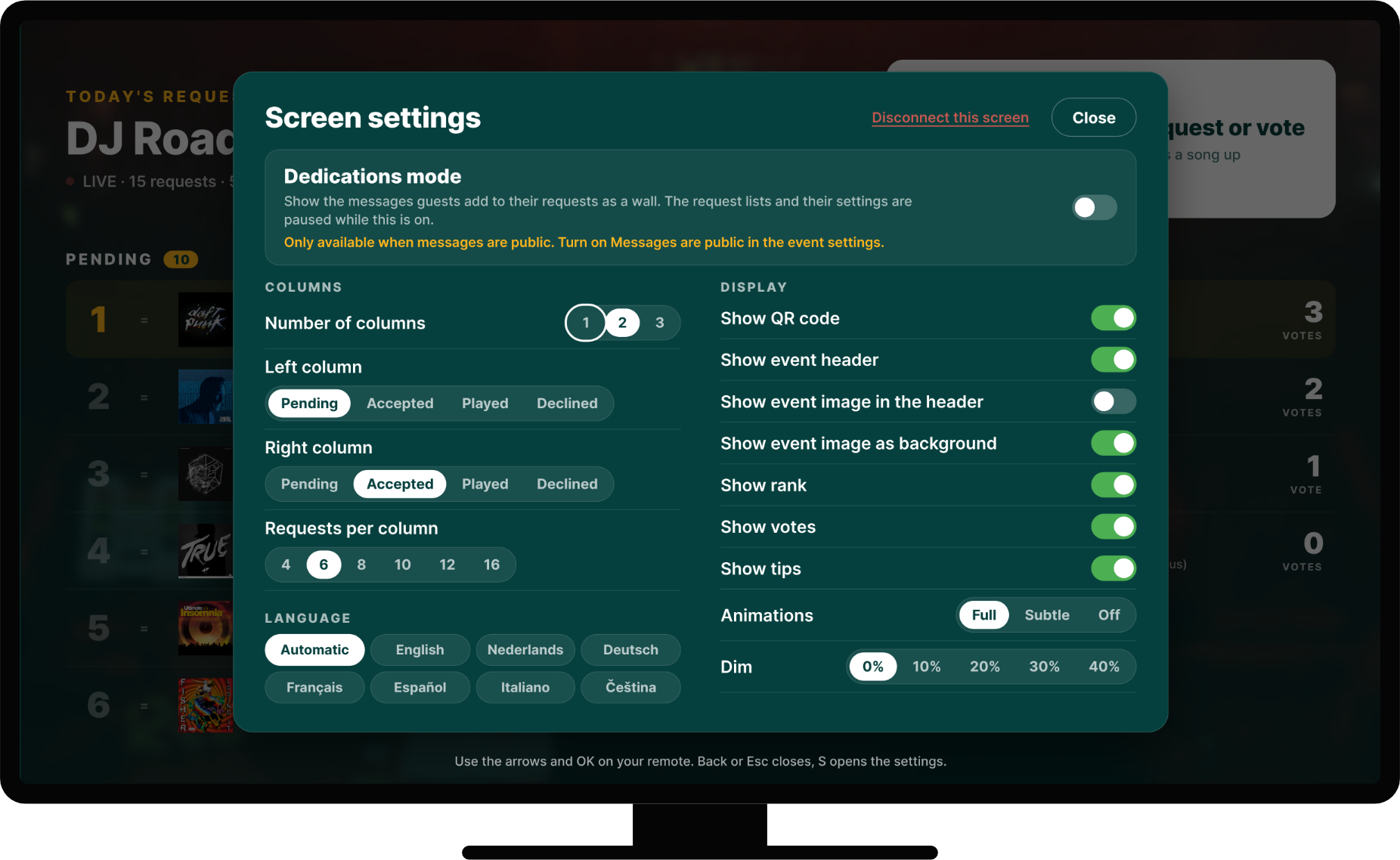
Every screen has its own settings. To open them, press OK on the remote or press and hold the top right corner of the screen. Show one, two or three lists and choose how many requests fit in each. You also decide whether the QR code, the event image, the votes and the tips appear, and how lively the animations are.
The screen works in landscape and in portrait, so a tall screen by the bar works just as well as a TV above the dance floor.
Dedications Mode
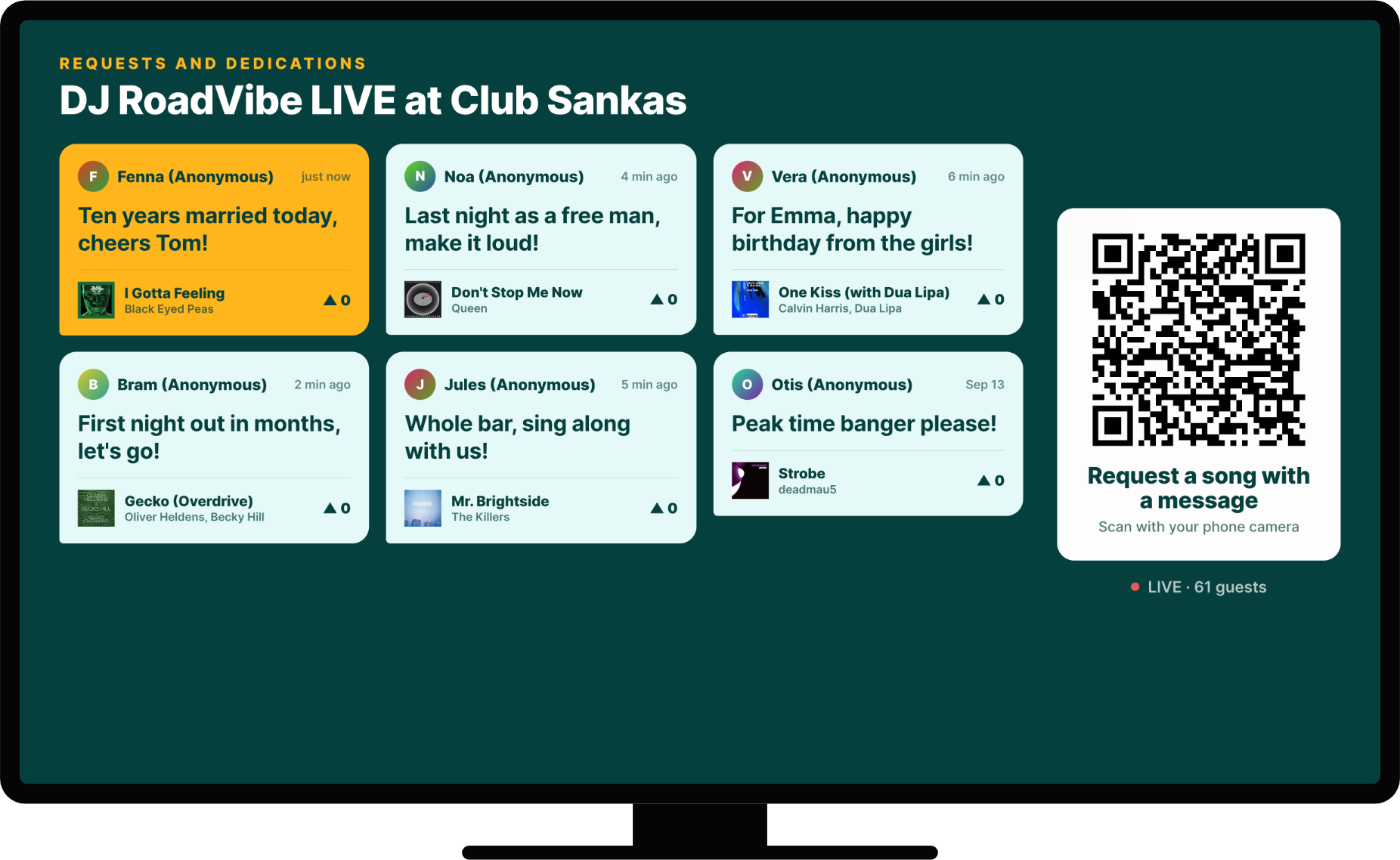
At a wedding or a birthday, the messages are often the best part. Turn on Dedications mode and the screen becomes a wall of the messages guests add to their song requests. It is available for events whose messages are public.
Get Started
The TV screen is part of the Rekwest Enterprise plan. Update your Rekwest app, open your event and choose TV screen in its menu. The TV screen documentation walks you through every step.